
Use Slackbot to Manage MuleSoft
Overview
Slack’s AI assistant (Slackbot) supports MCP integrations, so you can connect it to the MuleSoft Platform MCP Server and manage your entire Anypoint environment — discovering APIs, applying policies, and taking action — directly from a Slack conversation.
Step 1 — Join the workshop Slack workspace
You should have received an email invitation to the workshop Slack workspace. If you haven’t, ask the facilitator for an invite link.
- Open the invite email and click Join Now, or navigate directly to the workspace: sdo-demo-34640.slack.com —
Step 2 — Open Slackbot
- In the Slack sidebar, click Slackbot (the robot icon) in the top-right corner of the workspace
- The Slackbot conversation window opens
Step 3 — Connect the MuleSoft Platform app
- In the Slackbot message box, look for the Apps icon below the message input field
- Click it and select Manage Apps
- You should see MuleSoft Platform listed in the Apps panel
- Click Connect next to MuleSoft Platform
- A browser window opens — sign in with the MuleSoft credentials provided to you (from the Credentials page)
Step 4 — Agree to the consent dialog
After signing in, Anypoint Platform shows a consent screen asking permission for Slackbot to access your account on your behalf. Review the permissions and click Grant access.
Step 5 — Verify the connection and review tools
Once you are redirected back to Slackbot, confirm the integration is active:
- Click the Apps icon → Manage Apps again
-
MuleSoft Platform should now show Connected
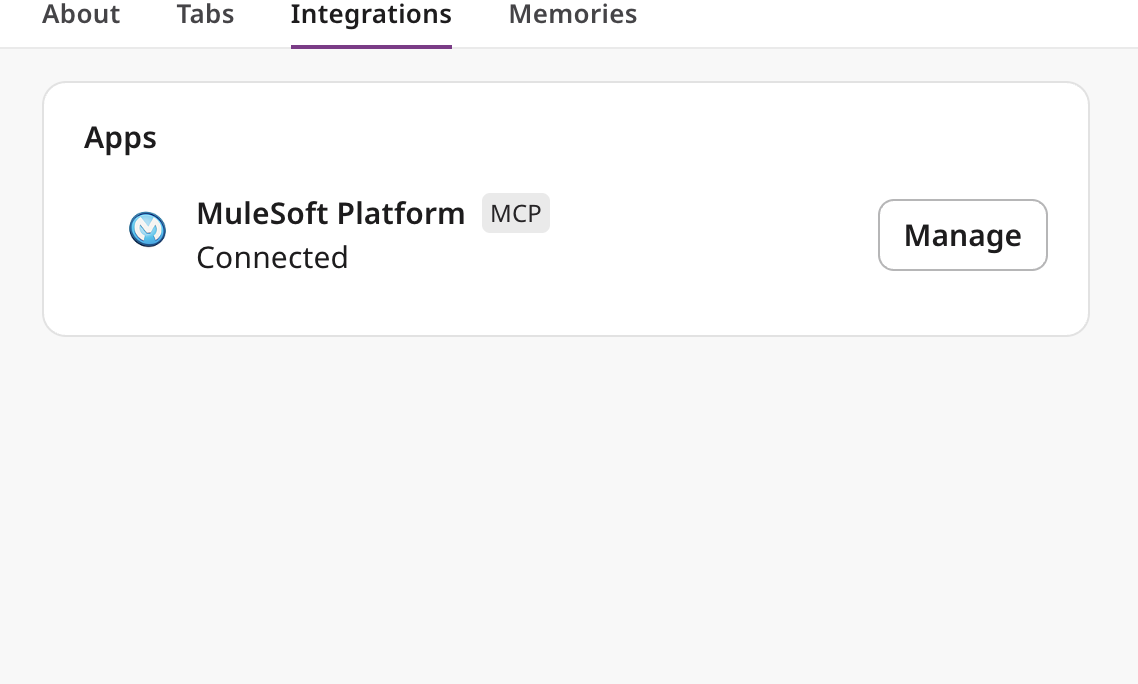
-
Click Manage to review the tools Slackbot can use
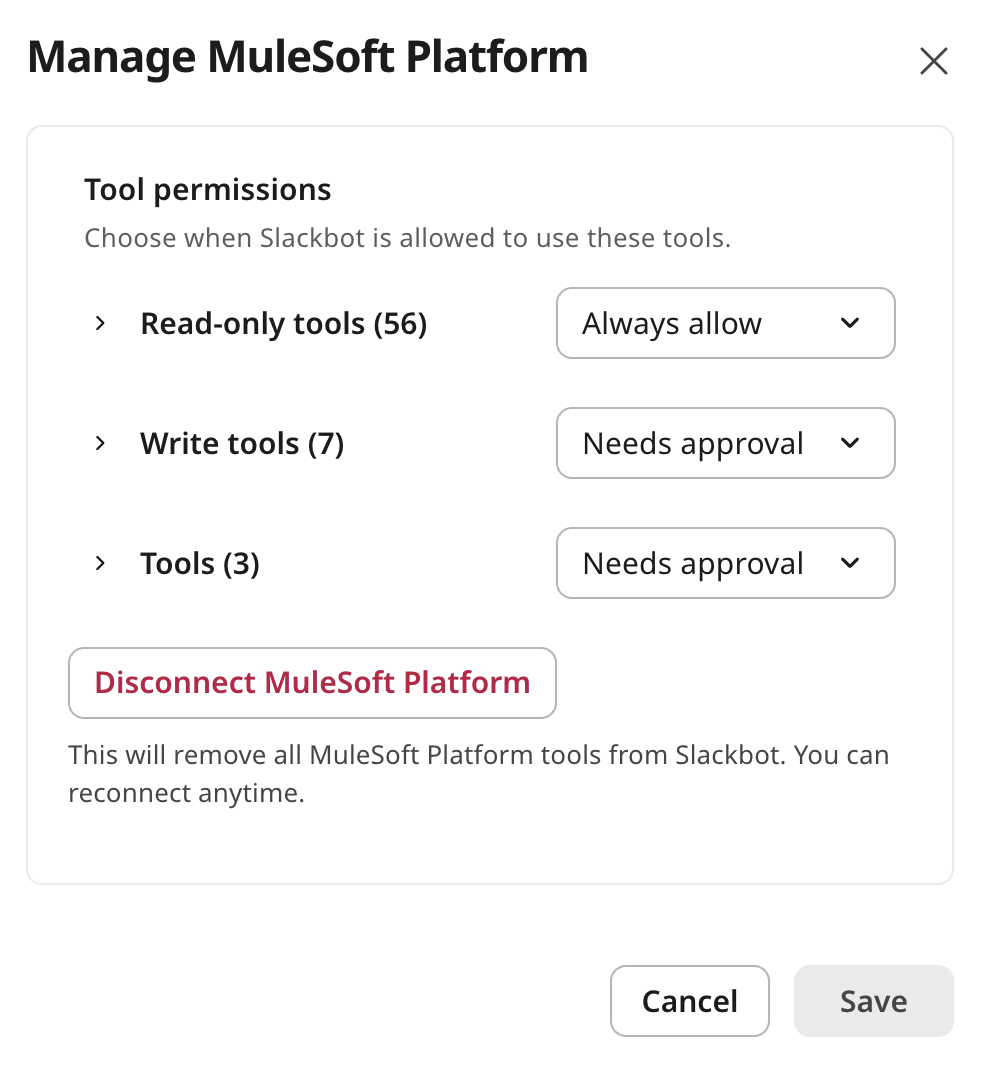
The tool permissions dialog shows:
- Read-only tools (56) — set to Always allow by default
- Write tools (7) — set to Needs approval by default
- Tools (3) — set to Needs approval by default
Write and action tools require your explicit approval before Slackbot uses them, giving you full control over any changes.
- Click Cancel to close the dialog without changing anything
Step 6 — Try a natural language conversation
Close the Manage dialog and type the following message in the Slackbot conversation:
“Show me the APIs in my MuleSoft account.”
Slackbot calls the MuleSoft Platform MCP Server and returns a list of your APIs directly in the conversation.
Step 7 — Explore further
You can do much more than read data. Try these prompts:
- “What MCP servers are registered in my org?”
- “Show me the policies applied to my LLM Proxy.”
- “Apply a rate-limiting policy to my Photo Catalog API.” (write action — Slackbot will ask for your approval before proceeding)
The MCP Server gives Slackbot access to the same 66 tools available to Claude Code — read-only queries run instantly, while write and action tools pause and ask for confirmation.
Continue to Connect Claude Code (Optional) →